Tips and Hints - complete listing
Checklists, hints and tips about the things we often take for granted

|
DESPITE THE term “oracy” being omitted from the Curriculum and Assessment Review’s Interim Report, I am hopeful. Here’s why.
Schools increasingly recognise the importance of oracy for their pupils and are building their expertise. According to polling from Teacher Tapp in January 2025, 13% of schools now have a named oracy lead and this year alone more than 1,000 are working with Voice 21 to embed a high-quality oracy education.
The review panel’s ambitions for the curriculum require talk. The interim report sets out six ambitions for a refreshed national curriculum. Together, these offer a vision of education that necessitates a serious attention to oracy. This isn’t surprising, given what we know about oracy’s crucial role. |
horizons while also ensuring they see themselves represented in what they learn; and to ensure pupils are prepared for their future life and work.
First, the report offers a welcome acknowledgement that the primary curriculum as it stands is “not effectively balancing depth and breadth”. It adds: “This is reported to lead to a struggle to cover all content with sufficient depth and negatively affects pupils’ ability to master foundational concepts.” This is frequently raised by our schools as a frustrating way in which the current curriculum works against oracy. Redressing this balance means inviting pupils to think deeply; and to engage in the rich discussions that are both a result and an enabler of deep and lasting learning. |
role of tech and AI at work grows, spoken language and listening skills will become more important for progression at work.
We hope that the review panel’s final report will offer clarity on oracy, supporting consistent, high-quality practice across England. This entails: 1. Adopting an expansive definition of oracy, encompassing learning to, through and about speaking, listening and communication.
...is head of learning, impact and policy at Voice 21, a national oracy education charity. She supports the charity’s whole-school approach to oracy education, which now reaches more than 1,000 schools. Visit |


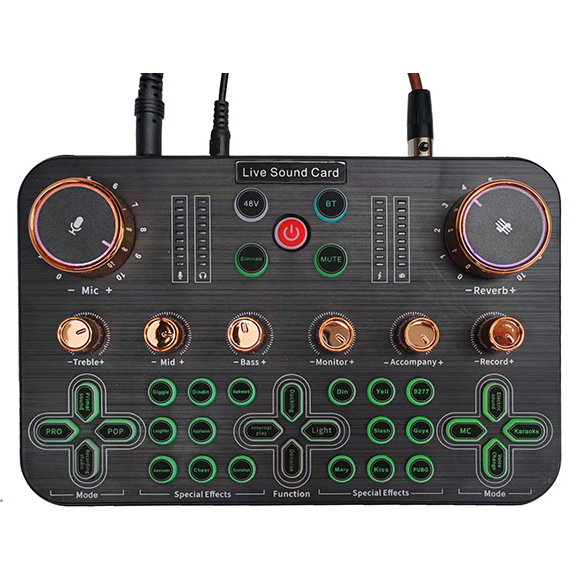
To make recordings sound more interesting and to add background sound the sound card can be used by pressing the sound "pads" or mbient background sounds and effects can be downloaded and added when editing.
The easiest way to add sound clips while still recoprding live is to use the "pad" effects on a sound card
The EC40 Sound card has 16 sound pad pre-recorded effects such as laughing, crying, clapping etc simply by pushing the effect button. It a;so has 8 mode settings for different background modes
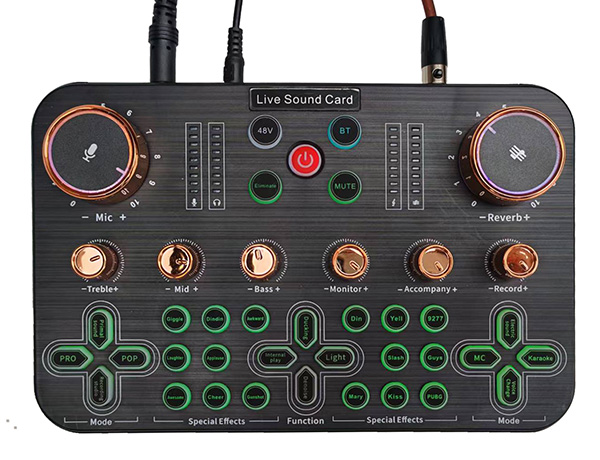
Other effects such as Background Noise reduction, Reverb, Bass, Middle and treble all have adjustments to make your podcast exciting and special for your listeners/
Pre-recorrded Sounds
An alternative is to add downloaded music or other effects from online sourcs and add to your sound track.
 There are many websites providing school, collefe and university background sounds - here are some examples
The sound clips below can be downloaded and added to your sound track to make podcasts come to life
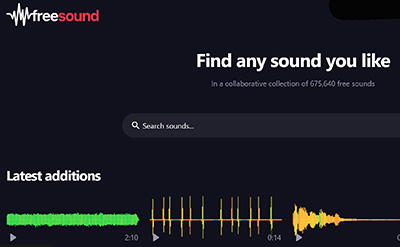
Here are some sites for podsafe music:
- The Free Sound Project (opens in a new window)
- SoundSnap
- Flash Kit - Sound FX
- Podcast Bumper Music
- Four Bees Free Media
- Podsafe Audio
- Mutopia
- ACIDplanet (offers a free 8-pack of loops each Friday)
Although loops may seem specific to GarageBand or ACID XPress, they are simply AIFF or WAV files that can be used in any audio editing program.
Before students even think of stepping up to the microphone, much planning must be done. In fact, that preproduction can takes more three-quarters of the time to produce a podcast. Students need to keep their audience in mind. Who will listen to the podcast? Is it everyone in the school? Is it parents? Is it students in another state or another grade level? Determining who exactly is the audience should help focus the podcast.
The podcast will need a name. The more creative, the better!
In preproduction, you must also decide upon the format for the podcast. Who will actually be heard in the recording? Should you have a host? What segments do you plan for the show?
Sample ideas and uses for a podcast:
- Weekly classroom news broadcast
- Document a field trip
- Record a class discussion
- Share book reviews
- Conduct interviews
- Review curricular content
When planning, consider the length of your podcast. This will be based on your content and audience. Podcasts are typically around 8 minutes long, which seems to work well for our audience of students.
If your podcast is involving an entire classroom of students, the teacher should find ways to involve everyone in preproduction. For Radio WillowWeb, some teachers have everyone pair up in class. The pairs all write segments. Then the pairs present the segments to the entire class. The teacher and students then select which segments should be included in the podcast. This way everyone is involved, the podcast gets the best segments, and the recording will be an appropriate length.

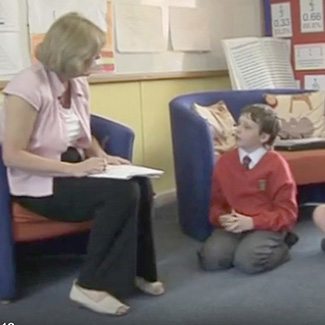
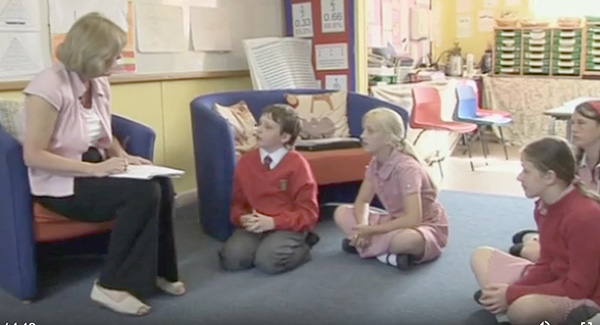
It’s really helpful for students to practice what they are going to say out loud to others. Adult volunteers can help students listening to them practice what they will say in the podcast. The volunteers or others in the team can coach students to do better. Students tend to have trouble speaking at an appropriate volume and speed. They will probably need help enunciating too and getting a clear a suitable sound level.
You need to choose where you want to upload and publish your podcast, this could be just for classroom use where your podcast is shown on a monitor or touchscreen, added to the school server so that it can be viewed anywhere in school, loaded onto the school website or uploaded to a public site, such as Youtube, where podcasts can be viewed by the public or selected groups, such as parents.
In your classroom students can view the podcast on a laptop or PC monitor or connect the computer to a large wall mounted screen
Publishing online is perhaps the most technical part of the entire process.
To view on the school network you need to upload your MP4 podcast to the school server
To view online you need access to a web server. Copy the MP4 file to the server. The podcast needs a web page and an RSS feed. For the web page, use your favorite HTML editor (like Dreamweaver or FrontPage) or put the podcast information into a blog posting.
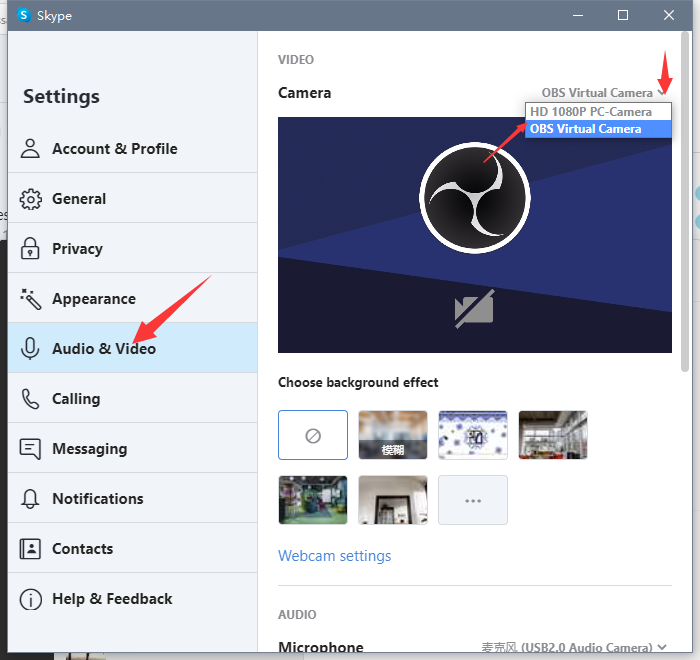
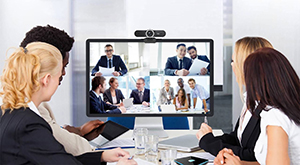 When you first use a new webcam on a laptop you need to add it as a device so that your meetings application like Skype, Zoom or teams can find it.
First plug in your webcam to one of the USB ports on your laptop or PC.
On Skype go to your profile and then click settings.
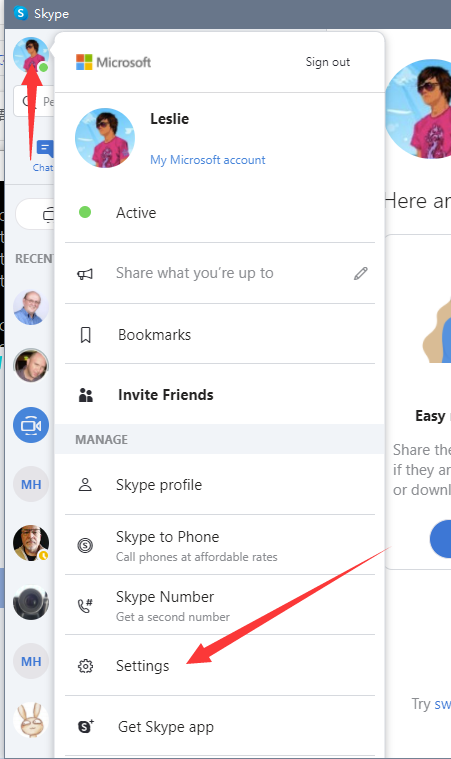
This will open and you can select Audio Video and in the top right hand corner select the dropdown menu to select yourwebcam. Zoom and Microsoft Teams have similar settings.