Articles - Latest and archive
Articles to inform, alert and inspire
 Technology is racing on, especially in the classroom. In some schools tablets or laptops are being provided instead of textbooks. Whatever the teaching environment, providing a young person with a tablet at school requires an element of control to be implemented. Without this control, young people will use and abuse the tablet for things other than classroom activities, including searching the Internet, sending emails, chats on social networks, playing games, and any other non-educational activity they can find to access.
Changing settings to access the camera, and installing their own apps is easy. Changing these settings could also make the tablet difficult to use by others who may share the tablet or teachers who may need to access files to grade a pupil’s work.
Android tablets have a full-size colour screen, built-in memory, and many features of a standard computer. The relatively high resolution screen is suitable for use with a projector, and with a large on-board memory ( 8 Gb of memory is a useful standard to adopt for the classroom where work will be saved elsewhere - with 16 GB more suitable for personal tablets) this allows even complicated multimedia presentations to be loaded onto a Tablet without running out of space. Tablets are available with very high HD resolution and these are great for a personal devices especially for gamers but they are very expensive in comparison and not required for the classroom (800x480 resolution is fine for classroom use)
Most Android Tablets include high speed wireless (WiFi) networking, 3G and Bluetooth and include ports, such as standard or mini USB and HDMI ports with audio output and SD card slots taking up to 64 GB SD cards for extra memory. For the classroom WiFi is essential but 3G is not needed and Bluetooth is a luxury and additional cost when only really needed for Bluetooth keyboard connection rather than a conventional USB keyboard that doesn't need batteries. Likewise HDMI is more suited to a teachers tablet.
Android-powered tablets have a huge price advantage over Apple iPads making them more cost-effective for budget limited schools especially if the specification is matched to classroom needs. Android tablets also allow users to download third-party software, which Apple prevents, which stops schools implementing student monitoring software on iPads. Android tablets with a different front end GUI installed can be customised to better meet school and pupil requirements.
A 9" Android single core tablet with WiFi and 8GB memory is about 30% lower cost than an android 10.1" personal tablet without any significant loss in performance due to the minimally smaller screen size and is ideally suited for classroom use but you can also equip three classrooms with these 9" Android tablets for the price of one classroom with iPads .
Dual core Android tablets using the new Jelly Bean operating system can easily be customized to suit classroom needs so making it an ideal tablet and operating system combination for the classroom.
An Android tablet offers most of the advantages of PCs common in many classrooms especially when used with a keyboard, docking station and mouse but they also add new capabilities:
The touchscreen allows users to "draw" using a finger or stylus. It is possible to draw with a mouse but drawing with a stylus is much easier for most people. A Tablet can be used in landscape or portrait modes. Very convenient for material that may have been originated in portrait format like most books. Tablet are ultra-light with a long battery life. They are very portable and especially good for field work away from the classroom. Versions of most popular applications are available for tablets, without the need for lengthy training sessions.
Built-in Digital cameras produce a powerful data collection and annotation tool for subjects like architecture, art or biology and science. The microphone can capture audio data.
The combination of an Android tablet with control apps (software) to prevent pupils from abusing their use provides not only a great opportunity to reduce the cost of supplying printed books but also to provide a very adaptable classroom tool.
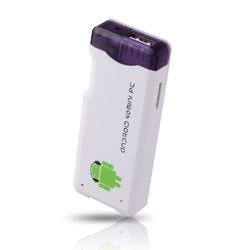
Major Competition for Raspberry Pi
Low cost Mini Android PCs allow users to learn programming languages, several of which are designed especially for pupils and students at school, college and University, to gain valuable computer science skills.
Mini computers like Raspberry Pi and the Mini Android PC are very low cost and provide a safe environment for the learner to experiment without the fear or possibility of destroying valuable data, software, apps or settings found on a normal PC, Laptop or mobile phone. Just reboot and start again if everything else fails.
There are key programming languages which would be brilliant to run on a mini Android PC that really help learners to develop their computer science skills – they all have free open source versions which are free to download and use under GNU licences.
The mini PC is a brilliant platform to play and learn from with seriously high end technology for displaying games and apps that benefit from High Definition (HD) graphics etc. Simply plug the mini PC into a high resolution monitor or TV through the HDMI port and enjoy large screen display, and even touch screen with high quality sound.
-

Media player
With out of the box support of a vast range of media formats, and HD video output via HDMI, the Mini Android PC is a great gadget to have in your living room.
-
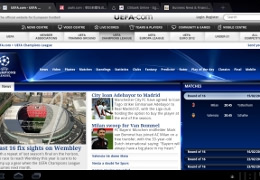
Internet browser
Plug in a keyboard and mouse, connect to a wireless network, and you can be surfing the internet from your couch in no time using Chrome or the android browser.
-
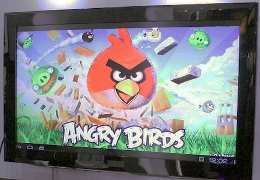
Gaming device
Play a vast range of free and premium games available via the Android market, or install some emulators to enjoy some vintage gaming in high definition.
-
Customizability
Convert the Mini Android PC into a fully fledged desktop PC by using the popular operating system Linux. Using Linux, you get access to a wide range of desktop software.
With it's exceptionally small size and weight the Android Mini is an ideal candidate to “embed” into other devices and equipment like robots, digital signage, cars, electrical equipment, monitors. It just needs a 5 volt supply which could be derived from batteries.
Android is Linux and it seems that the meteoric take-off by Android means that the “forking” or divergence of the software some while ago is now showing signs of coming back together. So it is likely that more will be possible not less by using Android/Linux in the future
Developing skills on the Android Mini PC enhances the ability to develop tools/apps/games in the future. This arena is huge in the UK but some fear the lack of new talent will damage progress, the opportunity with the Android PC for learning is that there will many more capable developers and hopefully no need to rely on others outside the UK to provide the skill set according to government and academic sources promoting this technology.
To help the process along, rather like the old BBC micro that introduced many, like me, to their first standalone computer, there are projects like the BBC micro 2 to develop open source software not hardware this time, to spread the word and provide access to resources. New technologies like Wikis and Forums also enable collaboration in development, There's even talk of the return of BBC Basic which was a powerful learning tool and could prove very handy in today's world of enormous volumes of on-line data.
Courses for programming languages like Scratch already exist and are available as a Moodle back-up file to download and which can be uploaded straight into your VLE site.
 The IR touch screen is a very well established, well proven, and reliable technology. Invented in 1971, the first "touch sensor" was developed by Dr Sam Hurst (founder of Elographics) in 1983 Hewlett-Packard's HP-150 was one of the first commercially available IR touchscreen PCs with a grid of infrared beams across the front of a monitor which detected finger movements.
Other touch technologies have been developed since including resistive and capacitive used in many hand held devices and the much later optical imaging technology.
Dr. Andrew Hsu, an expert on touch screen technologies, states in his research paper that “IR (infrared) screens are among the most durable surfaces and can handle hostile environments, making them well suited for military applications ... we can see that infrared touch screen technologies, while being the most durable surfaces, are also quite possibly the most versatile”. Touch screens are used in aircraft, military equipment, machine controls, automobiles, appliances, cellphones, gaming consoles and in large format screens in school classrooms
IR touch technology has also been established for a long time in the classroom in another form where it is used for some makes of interactive whiteboard where it easily withstands the daily wear and tear of eager pupils.
At EdisAV we chose IR technology for our Edis Touchscreen Multi for the classroom to take advantage of the versatile, well proven technology and established durability to hostile environments coupled with the indomitable LCD display featured in millions of TVs around the world.
Author
David Edis-Bates C Eng MIET
 Touchscreens now cost 80% less than the total cost of a projector and whiteboard in the classroom, they are cheaper to buy, easier to use and vastly less costly to maintain.
Projector and Lamps
Projector lamp replacement and maintenance is the most expensive and labour intensive part of the ongoing ownership costs of a projector. To have the same 60,000 hour lifespan as a Touch screen most projectors will need more than 30 replacement lamps !
Even with the latest Casio projector with a 20,000 hour lamp life which uses a laser and LED light source the Ongoing Cost of Ownership over 60,000 hours is less but still something like US$13,155 (£8,770) with an initial purchase cost of about US$3,796 (£2,530)
A typical mercury vapour projector lamp has a lifespan of about 2,000 hours (High Brightness mode) or 3,000 hours (Standard mode) which equates to about 2 years of use in a typical classroom, using it 6 hours every day with care. In practice we hear that teachers find the dimming of the lamp during this period would lead to earlier replacement in many cases if the replacement costs were not an issue !
Performing regular maintenance on the various parts of a projector, such as the filters, lens, lamp and casing will ensure that the best quality image possible is displayed for your audience and to meet the stated lamp lifespan, but this is a time consuming, laborious and expensive process.
Digital projectors consume electricity and produce hundreds of watts of heat when in use. This heat must be blown from the projector to prevent overheating and projector malfunction. It is especially important for the life of the projector lamp that this heat is removed effectively since projector overheating is the primary cause of projector lamp failure. Most projector manuals recommend cleaning projector filters once every 100 to 300 hours - a tedious and specialist process.
Projector manufacturers usually recommend a list of things to achieve the expected life of the projector and it's lamp some of which require maintenance that will need time, effort and involve extra costs one way or another. Such a list might include : use in economy mode (i.e. turn down the brightness !), install the projector a good distance from the ceiling to dissipate heat better, let the projector cool down before turning off the power, do not move the projector until cold, do not turn on and off quickly, clean the filter, lamp and projector casing regularly. All these things allude to the fragile nature of a projector and the need for care, attention and maintenance during it's lifespan.
It's worth remembering that during these maintenance operations it is likely that the projector will be moved inadvertently on it's mount and will probably require re-alignment to ensure that the image fills the whiteboard correctly
Interactive Whiteboards
Just how long will a SMART Board™ interactive whiteboard last? Many teachers ask that question according to Nancy Knowlton President and co-CEO of SMART Technologies Inc. . “Most people budget for a three to five year useful life for projectors and PCs, and expect about the same for the SMART Board interactive whiteboard” (this equates to only 6,600 hours based on 6 hours a day 220 days per year !).
It's interesting to note the construction of the SMART Board Interactive Whiteboard. “Two sheets of resistive material are stretched over a large, flat surface and separated by a small air gap. When you press on the interactive whiteboard’s surface, the two resistive sheets touch and an X,Y coordinate is registered”.
Nancy Knowlton says that “Whether you press on the interactive whiteboard’s surface with your finger or a pen tool, very little wear and tear occurs as you interact with content on the screen, because the surface material is made of a hardcoat polyester, which does not wear out or lose its tension over time “. Published data for hardcoat polyester (PET) states that it has good abrasion and yellowing resistance. Typical abrasion resistance for PET is 35 million actuations with a silicone finger (= 810 days or 3.68 years if 2 actuations per second for 6 hours per day – unlikely in reality so the life is very much longer than this but still limited). The bigger danger is from damage caused by hard or sharp objects such as furniture which usually require the board to be replaced.
If a whiteboard marker is used on the interactive whiteboard surface it is almost inevitable that after time the surface will become a smeared grey colour requiring more thorough cleaning than just a pre-emptive wipe with a dry cloth. Advice and various treatments with specialist cleaners are recommended by Smart and others to remedy this situation, taking extra time, effort and materials. Using incorrect or abrasive materials can permanently damage a whiteboard's surface. So there are a number of manufacturer's caveats which identify the cleaning risks and fragility of an interactive whiteboard - not such a tough and resilient surface that simply needs a quick wipe of the glass to remove “jammy” finger marks - as is the case with a Touch screen.
LCD Touch screens
LCD Touchscreens are a very well proven technology with many millions of LCD TVs in operation around the world having a lifespan of at least 60,000 hour or higher, many manufacturers now claim 100,000 hours (mind you 100,000 hours is a life of over 65 years - a little bit longer than the technology has been around !).
LCD touch screens do not suffer from burn-in caused by a static image as was the case with old style CRT screens, but it is possible, but very rare that individual pixels in an LCD screen can burn out, causing a small, visible, black or white dot to appear on the screen. You may or may not find this annoying depending on the position of the pixel. Since LCD crystals are back-lit by a separate light source, if the bulb burns out it can be replaced.
LCD displays have no moving parts like the fans, a crucial part of a projector, that fail after an extended life, especially in dusty classrooms
If we use 6 hours per day and 220 school days per year, 60,000 hours equates to about 50 years lifespan, in reality the technology will move on apace and no doubt we will have some very different options available during the next 10 years or so (the same sort of time frame that projector and interactive whiteboard technology was first made available in schools, peaked and is now in terminal decline)
Power consumption of energy hungry projectors increases schools electricity bills - a typical Touch screen uses less than half the electricity consumed by a projector during it's life, and has ECO power saving features.
Touch screens require no cleaning or maintenance (just remove finger marks with a damp cloth)
The tough and resilient Touchscreen using IR technology typically has a 4mm or 5mm toughened anti-glare glass screen and is almost indestructible – more akin to the windscreen of a car – and effectively has an indefinite lifespan in the classroom. (some manufacturers do not use IR technology and use PET surfaces or similar which probably suffer the same issues as the whiteboards mentioned above)
Another benefit of touch screens is the portability of the software used which is a hidden cost saving. The main suppliers of interactive whiteboards have been very reluctant, in my view, to make their software independent of their hardware. So the enormous effort of creating content for the classroom may be lost when changing schools, or even classrooms, that use a different whiteboard supplier. The beauty of Touchscreens is that independent software is available (usually supplied free with the Touch screen) that can be used on any touch screen or interactive whiteboard. I can see the opportunity for even newly qualified teachers to carry their content and lesson plans etc with them from school to school with a copy of the software. No need to waste time re-creating lessons for different technology or equipment suppliers.
There is no contest between the cost of ownership of Touchscreens and a projector/whiteboard combination, the initial purchase is lower (well – it is if you buy ours) and the ongoing costs for touchscreens are minimal compared to the enormous US$20,000 total life cost of the projector and whiteboard combination – you can save more than 80% of this by buying a touchscreen. Not to mention the stunning performance, pupil intuitive features and usability in normal classroom lighting conditions.
Author : David Edis-Bates
|
 Multi-touch touchscreens will soon take over from interactive whiteboards in the classroom as their enhanced learning features and lower prices make them the first choice for both new installs and replacements for life expired projector systems.
Touch screens are brighter, tougher and now lower cost than most whiteboard systems. Using direct finger touch they have the function, feel and touch of an iPad – no need for a special pen or stylus, though the pen provided increases the accuracy and makes drawing a real snip.
No need for a projector, with it's expensive cables and power socket, which casts shadows on the screen as students approach and shines its light into the eyes of anyone at the front of the classroom. Touchscreens operate well in bright light conditions unlike the projector systems which suffer from stray external light sources.
See full article by David Edis-Bates here ....